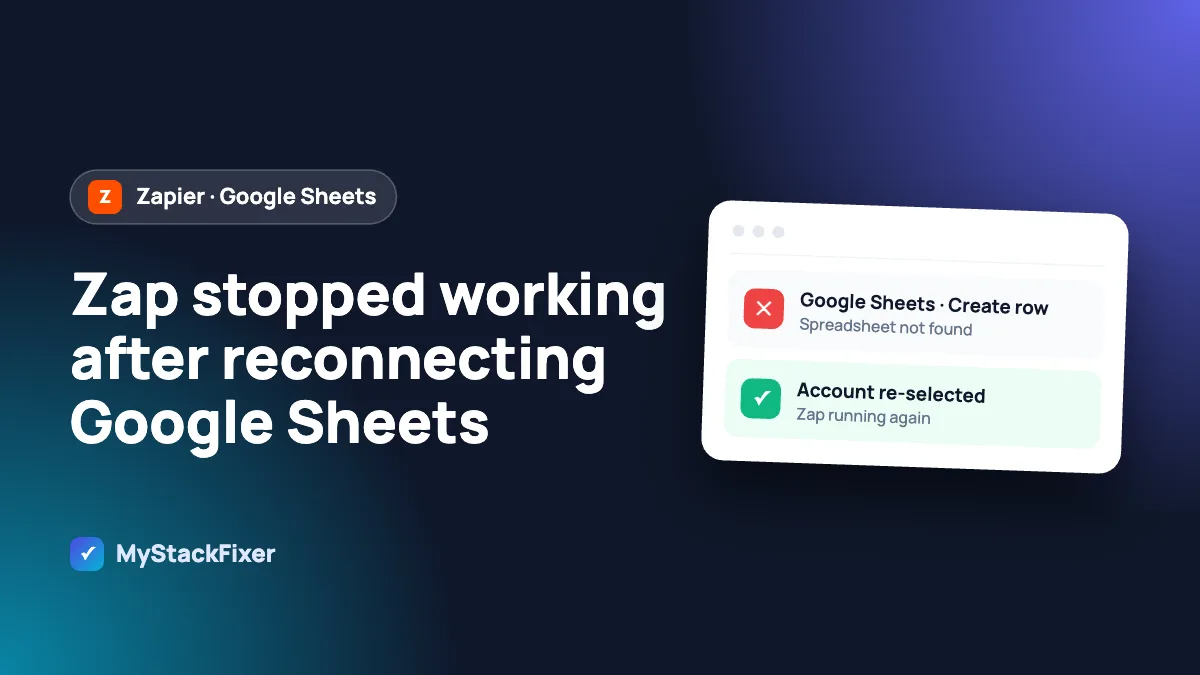
The problem in one sentence: you reconnected Google Sheets in Zapier, and now a Zap that used to work fails every time with an error about the spreadsheet or the connection.
This is one of the most common Zapier problems small businesses hit, and it usually has a boring cause: when you reconnect an app, Zapier can treat it as a different account than the one your Zap was built with. Your Zap is still pointing at the old connection, or at a spreadsheet it can no longer see. The fix takes about five minutes once you know where to look.
Quick answer: Reconnecting Google Sheets creates a new connection, but your Zap still uses the old one. Open the failing Google Sheets step, pick the new account in the Account dropdown, re-select the spreadsheet and worksheet, then test the step.
First, confirm what the error actually says
Don’t guess. Open the failed run and read it:
- In Zapier, go to Zap history (left menu).
- Click the failed Zap run.
- Read the error on the step that failed — usually the Google Sheets step.
You will typically see one of these:
- “Spreadsheet not found” or “The app returned ‘File not found’” — Zapier can reach Google, but it can’t see that specific spreadsheet anymore.
- “Authentication failed” / 401 — the connection itself is the problem, not the sheet.
- “Worksheet not found” — the spreadsheet is fine, but the tab (worksheet) inside it was renamed or deleted.
Which error you see decides which fix below you need. If you see a 401, skip to the “reconnect properly” section first.
Cause 1: Your Zap is using the old connection
This is the most common cause after a reconnect. When you reconnect Google Sheets, Zapier creates a new connection entry. Your existing Zap doesn’t automatically switch to it — it keeps using the old one, which is now dead.
The fix:
- Open the Zap in the editor.
- Click the Google Sheets step that fails.
- Look at the Account dropdown at the top of the step. If it shows the old connection (often with a warning, or an account name you don’t recognize), click it and select the newly connected Google account.
- After switching accounts, re-select the Spreadsheet and the Worksheet — they will look empty or wrong until you pick them again, because the new connection sees the files fresh.
- Click Test step. It should return a real row from your sheet.
- Turn the Zap back on (if you paused it) and run one live test — for example, add a test row and confirm it flows through.
Why this happens: Zapier identifies each connected account separately. Reconnecting doesn’t “repair” the old connection — it adds a new one. Zaps never switch accounts on their own, because switching accounts silently could send your data to the wrong place.
Cause 2: The spreadsheet was moved, renamed, or unshared
If the account is correct but Zapier still says “Spreadsheet not found”, the file itself is the problem:
- Moved to a different folder or Shared Drive. Google Sheets in a Shared Drive behave differently from files in My Drive. If someone moved the sheet, or if the Zap was built when the sheet was in My Drive and it’s now in a Shared Drive, Zapier may not find it. Move it back, or re-select it from its new location in the Zap editor.
- Renamed. Renaming the spreadsheet itself is usually fine, but renaming the worksheet tab inside it breaks the Zap — Zapier looks up the tab by name. If you renamed a tab, rename it back, or re-select the tab in the Zap editor.
- Sharing changed. If the sheet is owned by a different Google account than the one connected to Zapier, that account needs at least Viewer access to the sheet (Editor if the Zap writes to it). Open the sheet in Google Sheets, click Share, and confirm the connected account is listed.
The fix:
- Open the spreadsheet in Google Sheets and confirm it opens, the tab name matches what the Zap expects, and the connected Google account has access.
- Back in the Zap editor, re-select the spreadsheet and worksheet from the dropdowns (don’t type the name — pick it from the list, so you know Zapier can see it).
- Test the step, then turn the Zap on.
Cause 3: The connection is actually broken (401 errors)
If the error is an authentication error, the reconnect didn’t take effect for this Zap:
- In Zapier, go to Apps (left menu), then Google Sheets, and check the connection status. If it shows an error, click Reconnect and complete the Google sign-in — make sure you sign in with the same Google account that owns (or has access to) the spreadsheet.
- Watch out for the multiple-account trap: if you’re signed into two Google accounts in your browser, Google may connect the wrong one. Use a private/incognito window or sign out of the other account first, then reconnect.
- After reconnecting, go back to Cause 1 and re-select the account in the Zap step itself.
If it still fails
Work through this checklist in order:
- Check Zap history for the newest error. Fix the error you see now, not the one you saw an hour ago — the error changes as you fix things.
- Turn the Zap off and on again. After changing an account or re-selecting a sheet, toggle the Zap off, wait a few seconds, and turn it back on. This clears cached connection details.
- Check for renamed column headers. If your Zap maps specific columns, renaming a header row in the sheet can break the mapping. Headers should stay exactly as they were when the Zap was built.
- Look for a full or frozen sheet. A sheet with tens of thousands of rows, or one with filters/views applied, can time out. Test with a small, clean sheet to isolate the problem.
- Check Zapier’s status page. Rarely, the problem is on Zapier’s side. If other Zaps using Google Sheets fail at the same time, wait and retry.
How to stop this happening again
- Don’t reconnect unless you have to. If Zapier asks you to reconnect, first check whether the real problem is a moved file or a renamed tab.
- Use a dedicated Google account for automations. A shared automations account that owns the sheets avoids most permission problems when staff change.
- Never rename worksheet tabs that a Zap uses. If you must, update the Zap in the same sitting.
- Keep a note of which account each Zap uses. In the Zap’s description, write which account and sheet it uses. Future-you will be grateful.
- Watch for duplicates too. If your Sheets Zap feeds a CRM, read Zapier creating duplicate contacts in your CRM before you replay failed runs.
- Set up a Zapier alert. A simple second Zap that emails you when a Zap errors means you find out in minutes, not next week.
Frequently asked questions
Why did my Zap stop working right after I reconnected Google Sheets?
Reconnecting creates a new connection in Zapier, and your Zap keeps using the old one. Open the Google Sheets step, switch the Account dropdown to the new connection, re-select the spreadsheet and worksheet, and test the step.
Does renaming a Google Sheet break a Zap?
Renaming the spreadsheet file usually doesn’t. Renaming a worksheet tab inside it does, because Zapier looks the tab up by name. Rename it back or re-select it in the Zap editor.
Can two Google accounts break a Zapier connection?
Yes. If you’re signed into several Google accounts, Zapier may connect the wrong one. Reconnect in a private or incognito window with only the correct account signed in.
How do I know if the problem is Zapier or Google?
Check Zap history. A 401 or “authentication failed” error points at the connection; “spreadsheet not found” or “worksheet not found” points at the file or its sharing. If several unrelated Zaps fail at once, check Zapier’s status page.
Related fixes
- Zapier creating duplicate contacts in your CRM: how to rebuild a form-to-CRM Zap so each lead appears once.
- Calendly bookings not showing on Google Calendar: another Google connection problem with the same root causes.
- All Zapier fixes and Google Workspace fixes.