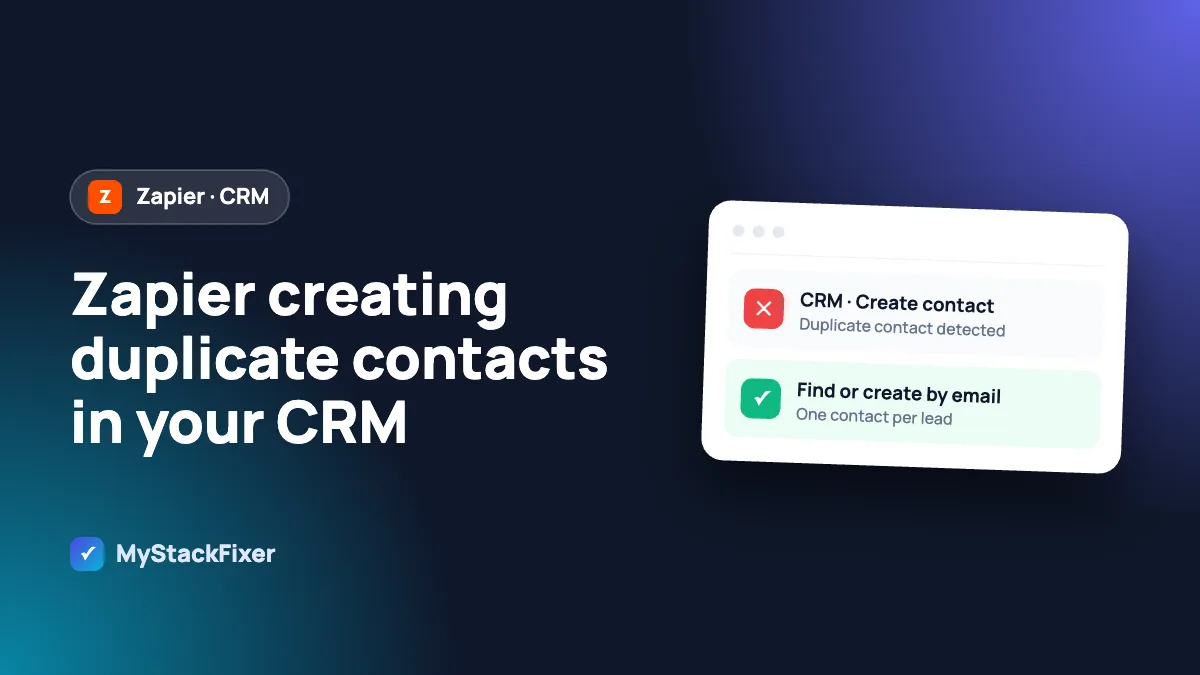
The problem in one sentence: every time a new lead comes in through your website form, Zapier adds them to your CRM, and somehow you end up with two, three or ten copies of the same contact.
Duplicates look harmless until they aren’t. Two staff members call the same lead. A client gets your welcome email twice. Your pipeline report says you had 40 new leads this month when you really had 18. And once duplicates are in a CRM, cleaning them up takes much longer than preventing them.
This guide walks through how to find out why your Zap creates duplicates, then fix it with the right Zap structure. The examples use a typical small business setup (a web form, Zapier, and a CRM like HubSpot, Pipedrive or Zoho), but the logic works with almost any CRM Zapier supports.
Quick answer: Replace your “Create Contact” step with a search step (“Find Contact” by email) that has create if not found turned on, then update the found contact instead of creating a new one. Also clean up the email address with a Formatter step first so Jane@Clinic.com and jane@clinic.com match.
Step 1: Find out whether the Zap is running more than once
There are two very different reasons for duplicates, and the fix depends on which one you have:
- The Zap runs once per lead, but each run creates a new contact. That’s a Zap design problem, covered in Step 3.
- The Zap runs several times for the same lead. That’s a trigger problem, covered in Step 2.
To tell them apart:
- In Zapier, open Zap history from the left menu.
- Filter by the Zap that feeds your CRM.
- Pick a contact you know is duplicated, and look for runs around the time they signed up.
- Open each run and compare the trigger data: same name, same email, same time?
If you see one run per duplicate, the Zap itself is firing too often. If you see one run but the CRM has several copies, or you see runs on different days for the same person (they filled in the form twice), the Zap is creating new records instead of matching existing ones.
Step 2: Fix a Zap that triggers too often
These are the usual reasons a Zap fires more than once for one lead.
You have two Zaps doing the same job
This is more common than you’d think, especially when a freelancer built the original setup and someone else added a “quick fix” later. In Zapier, open Zaps and search for your CRM’s name. Look for more than one active Zap that creates contacts from the same form. Turn off the old one. Don’t delete it until you’ve confirmed the new one works for a week.
Your trigger fires on updates, not just new entries
Triggers like “New or Updated Spreadsheet Row” in Google Sheets fire again whenever someone edits the row. If your form writes to a sheet and your team then adds notes in the same row, each edit can create another contact. Switch to a “New Spreadsheet Row” trigger, or add a Filter step so the Zap only continues for rows that haven’t been processed yet. A simple way to do that is to have the Zap write “Synced” into a status column at the end, and only continue when that column is empty. (If your Google Sheets Zap is failing outright rather than duplicating, see Zapier Zap stopped working after reconnecting Google Sheets.)
Your form plugin sends the submission more than once
Some WordPress form plugins and website builders resend a webhook if they don’t get a fast response, or when a visitor clicks Submit twice. If your Zap uses a webhook trigger and you see identical runs seconds apart, check the form’s settings for duplicate submission protection, and add the dedupe steps below as a safety net.
Autoreplay retried a run that partly succeeded
Zapier’s autoreplay setting retries failed runs automatically. That’s usually helpful, but if a later step failed after the CRM step already created the contact, the replay runs the whole thing again and creates a second contact. The structure in Step 3 protects you here too, because a replayed run finds the contact the first attempt created.
Step 3: Use “find or create” instead of “create”
This is the real fix, and it works no matter why the Zap runs more than once. Instead of telling the CRM “create a contact”, you tell it “look for this person, and only create them if they’re not already there”.
- Open your Zap in the editor.
- Above your existing CRM “Create Contact” action, add a new step. Choose your CRM app and pick a search action, usually called something like Find Contact or Find Person.
- Set it to search by email address, and map the email from your form.
- Tick the option to create the contact if it isn’t found. Zapier shows this as a checkbox under the search step, worded along the lines of “Create Contact if it doesn’t exist yet?”. Fill in the create fields the same way your old Create step had them.
- Test the step with a contact that already exists in your CRM. Zapier should return the existing contact, not make a new one.
- Remove the old “Create Contact” step, or turn it into an Update Contact step that uses the contact ID from the find step. That way new form details (like a phone number) are added to the existing record.
Search by a field that’s actually unique. Email is the best choice for most service businesses. Phone numbers are risky because people type them in different formats, and names are useless for matching: you will have two different “Sarah Khan”s eventually.
Step 4: Clean the email address before you search
A find step only works if the email in the form exactly matches the email in the CRM. People type emails with capital letters, trailing spaces, and sometimes a space in the middle from autocorrect on their phone. Some CRMs treat those as different values.
Add a Formatter by Zapier step right after the trigger:
- Choose Formatter by Zapier → Text.
- Choose the Lowercase transform and map the email field.
- Add a second Formatter step with the Trim Whitespace transform, using the output of the first.
- Use this cleaned email in both your Find step and your Create fields.
It’s two small steps and it removes a whole category of duplicates.
Step 5: Stop empty or junk submissions
If some form submissions arrive without an email (a phone-only enquiry, or a spam bot), the find step has nothing to search for, and depending on the CRM you can end up with nameless or duplicate blank records. Add a Filter by Zapier step after the Formatter: “Only continue if” the email exists and contains “@”. Send phone-only leads down a separate path if you need them, for example straight to an email notification for your front desk.
Step 6: Turn on your CRM’s own duplicate protection
Zapier is the first line of defence, but your CRM can help:
- HubSpot uses the email address as the unique identifier for contacts, so duplicates there usually mean the email differed slightly, or was missing.
- Pipedrive, Zoho CRM and most other CRMs have a duplicate-detection or merge tool in their settings. Turn on any rules that match on email.
- If your CRM lets you mark email as a unique field, do it. The CRM will then reject a duplicate instead of saving it, and Zapier will show an error you can see in Zap history.
Step 7: Clean up the duplicates you already have
Fixing the Zap stops new duplicates. It doesn’t remove the old ones. Do this after the Zap fix, not before, or you’ll be cleaning the same mess twice.
- Export your contacts to a spreadsheet as a backup before you change anything.
- Use your CRM’s merge or duplicate-management tool to merge contacts with the same email. Merging keeps notes and activity from both records, while deleting loses them.
- For contacts with slightly different emails, sort by name and review those by hand.
- Spot-check a few merged contacts to make sure deals, notes and tasks came across.
What a duplicate-proof Zap looks like
Put together, a reliable “form to CRM” Zap has this shape:
- Trigger: new form submission (a “new” trigger, not “new or updated”).
- Formatter: lowercase the email.
- Formatter: trim whitespace from the email.
- Filter: only continue if the email contains “@”.
- CRM search: find contact by email, creating it if not found.
- CRM update: update that contact with the latest form details.
- Notification (optional): tell your team a lead came in.
It’s a few more steps than a one-step “create contact” Zap. Formatter and Filter steps don’t count as tasks in Zapier, so most of the extra safety costs nothing; the CRM search and update steps do count. Either way, it’s the difference between a CRM you can trust and one your team quietly stops using.
Frequently asked questions
Why is Zapier creating duplicate contacts in my CRM?
Either the Zap runs more than once for the same lead (duplicate Zaps, “new or updated” triggers, resent webhooks, autoreplay), or each run uses a Create Contact action instead of searching for an existing contact first.
How do I stop Zapier from creating duplicates?
Use a search step that finds the contact by email and creates it only if it isn’t found, then update the found contact. Lowercase and trim the email with Formatter by Zapier before the search.
Do Formatter and Filter steps use Zapier tasks?
No. Formatter by Zapier and Filter by Zapier steps don’t count toward task usage. CRM search and update steps do.
Will fixing the Zap remove duplicates already in my CRM?
No. Fixing the Zap only prevents new duplicates. Back up your contacts, then use your CRM’s merge tool to combine existing duplicates.
Summary
Duplicate CRM contacts from Zapier come from two places: Zaps that run too often, and Zaps that always create instead of matching. Check Zap history to see which one you have. Then remove duplicate Zaps and “updated” triggers, rebuild the CRM step as find-or-create by a cleaned-up email address, and switch on your CRM’s own duplicate rules. Finally, merge the duplicates you already have. Once that’s done, each new lead should appear in your CRM exactly once.
Related fixes
- Zapier Zap stopped working after reconnecting Google Sheets: fix a Sheets step that fails after reconnecting.
- Calendly bookings not showing on Google Calendar: when bookings never reach your calendar.
- All Zapier fixes and CRM fixes.